CRM & Business Development • Never-Leave OS
Email that works like Outlook — inside BidSync
Add your Gmail, Zoho, or Outlook login and password once. All mail, calendar, and tasks flow into BidSync AI. Clean inbox, custom folders, rules, and large-file handling — and attach any bid, takeoff, estimate, or pay app without ever leaving.
Screenshots — Unified Email Inbox + Calendar + Rules
Captured from the running BidSync AI app at 1600×900 — inbox, messaging, and project-tagged threads.
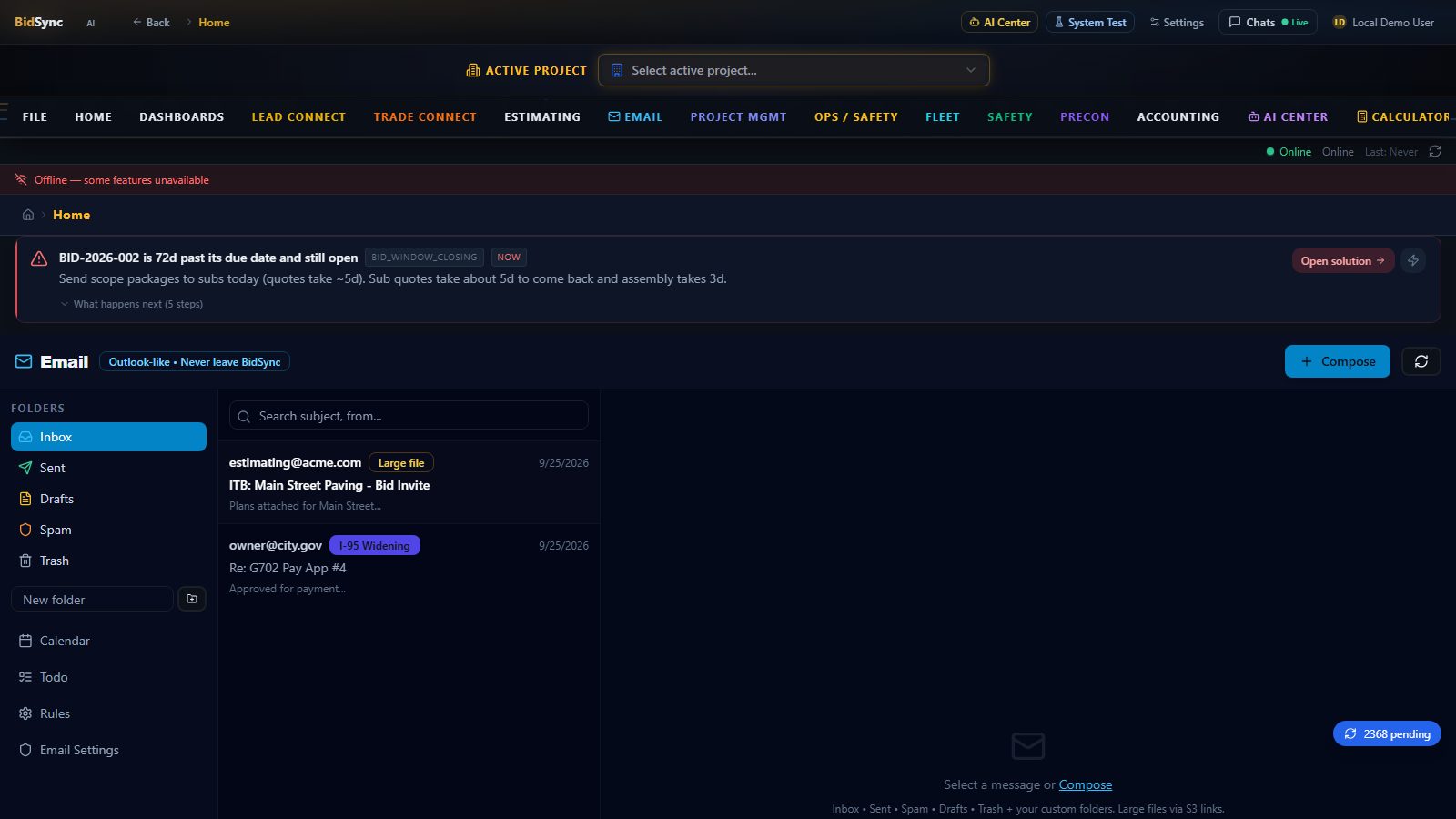
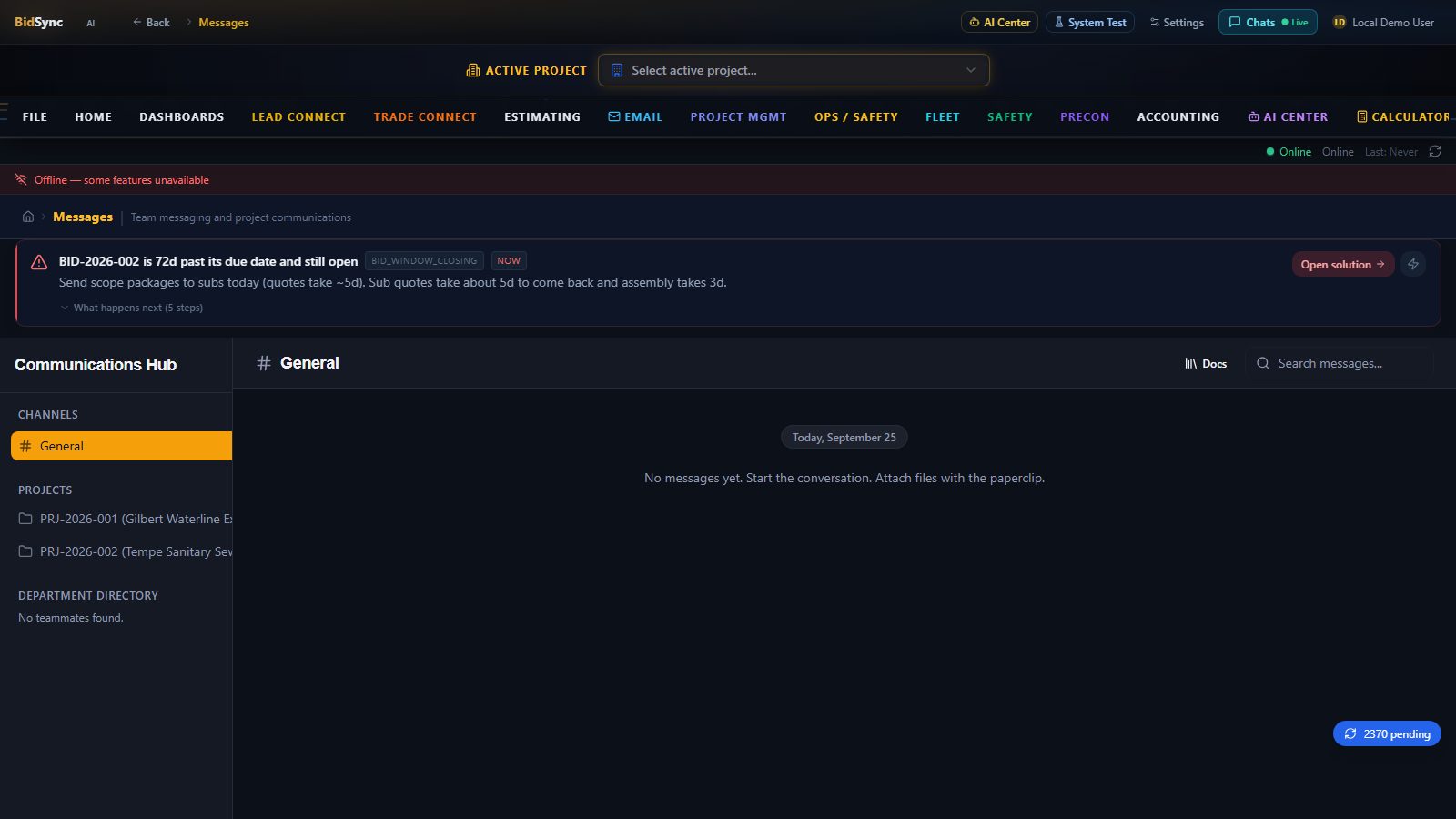
Clean — Inbox • Sent • Spam
Tri-pane like Outlook/Zoho: folders left (Inbox, Sent, Drafts, Spam, Trash), list center, preview right. Search, stars, snooze, and bulk actions. No clutter.
Inbox • Sent • Spam • Drafts • Trash
Calendar + Todo
Calendar events and todo/tasks live beside email — same data as Outlook/Zoho, synced via IMAP/CalDAV. Create an event from an email in one click.
Events • Todo • Reminders
Custom Folders
Create folders in one click. Drag-drop or auto-file via rules. Highly customizable — per user, per team.
Create • Rename • Nest • Share
Large file sending & receiving — no 25 MB limit
Construction plans, pay apps, and photo sets are huge. BidSync bypasses the 25 MB wall: large attachments upload to secure cloud storage (S3) and send as a fast, trackable link. Recipients get a one-click download — never a bounce. Receiving works the same: large incoming files stream directly into BidSync for viewing and auto-import.
- Send 5 GB+ as link — recipient sees
Download via BidSync, not a blocked attachment. - Receive large sets — no inbox quota blowout, streamed to storage.
Folder creation & rules — highly customizable
In Settings → Email → Rules, create rules like Outlook filters. They run on arrival, instantly filing and triggering workflows:
- All emails with “X” in subject → folder X — e.g., subject contains
Change Order 12→Folder: Change Orders - Bid invites auto-file: subject contains
bid inviteORITBORinvitation to bid→Folder: Bids+ auto-add to Business Development → Opportunities for evaluation - Group email: emails
to: estimating@(orestimating@bidsyncai.com) → auto-create Opportunity, move toFolder: Estimating, and notify estimators
Rules are AND/OR, any field (subject, from, to, body), any action (move, tag, notify, create Opportunity). Fully customizable per user or per company.
Bid invites → Opportunities + plans auto-downloaded
When an email matches a bid-invite rule (subject or group email), BidSync:
- Auto-creates an Opportunity on the Business Development → Opportunities page for evaluation (status: New).
- Auto-downloads attached plans (PDF, ZIP) and imports them into the app for takeoff — no manual save → upload.
- Notifies the team (estimating distribution list) with a link to the Opportunity.
Send from BidSync — project-tagged, team-visible
When sending from the app, the composer has an optional Project tag dropdown. Pick a job (e.g., I-95 Widening — Phase 2):
- Any reply auto-files with that job — thread stays pinned to the project’s Email tab, with full history.
- Readable by the whole team — or only who you choose: add the project as manager, estimator, or executive (or custom role group). Highly customizable per project.
- Evidence stays with the bid: the email, attachments, and replies are linked to the bid package for audit.
That’s the never-leave promise: email, calendar, and project history live together — no tab switching.
Security — built for contractors who hate IT headaches
- Encrypted at rest (AES-256) + TLS in transit — credentials never stored plain.
- OAuth where possible (Gmail/Microsoft) — no password stored at all.
- Revoke anytime: Settings → Email → Remove account or rotate app password — sync stops instantly.
FAQ — Unified Email
How do rules like “bid invite → folder” work?
Settings → Email → Rules → If subject contains “bid invite” OR “ITB” → Move to Bids + Create Opportunity. Add any phrase, any folder — highly customizable.
Does estimating@ auto-create opportunities?
Yes. Create a rule: To contains estimating@ → Add to Opportunities (Business Development) + Move to Estimating folder. Plans auto-download and import.
Can I send large plan sets?
Yes — 5 GB+ as secure cloud link, not a 25 MB attach. Recipient clicks to download fast, you get open tracking.
How does project tagging and team visibility work?
Composer → Project tag (optional). Thread files with that job; replies auto-file there. Visibility = project members by role: manager/estimator/executive or custom group — you control who sees it.
Works with Gmail, Zoho, Outlook?
Yes — any IMAP/SMTP. Gmail (app password/OAuth), Zoho Mail (J@bidsyncai.com), Outlook/Office 365, custom domain. One inbox inside BidSync.
See email inside BidSync live
Clean inbox, calendar, and project-tagged threads — highly customizable, never leave BidSync.